Question

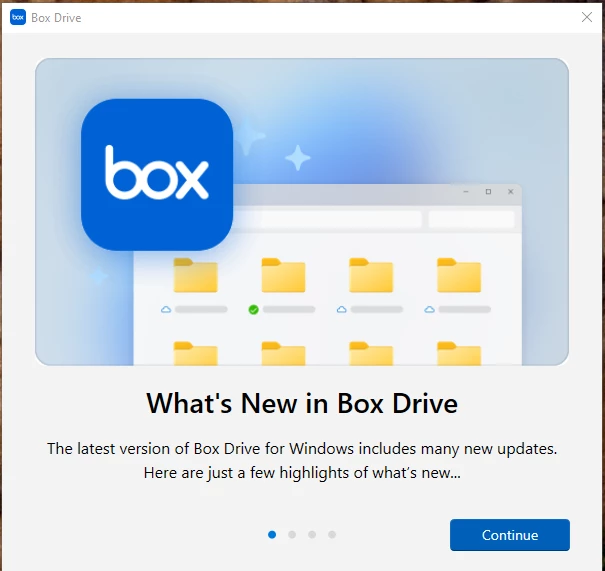
Please help me how to disable the below notification everytime I restart the computer. Thanks

  • May 30, 2026
  • 1 reply
  • 29 views


1 reply

Rona Box
  • Community Manager
  • June 2, 2026

Hi ​@Dinh Luong

Welcome to Box Community and we’ll help with your  Box Drive pop-up!


While we ask this out to our specialist, please try to manually reset your Box Drive application: 

 New Version - To reset Box Drive on Windows 

  1. Exit Box Drive (if it is running). If necessary, use Task Manager to end the Box.exe process.
  2. Run command
    "C:\Program Files\Box\Box\FS\cf\cfctl.exe" drive reset Box
    on command prompt. Files not uploaded to Box will be saved to the Desktop with a timestamp.
    1. The output should say “Box Drive reset completed successfully” at the end. If this is not so, then it may be that some files were still open and could not be deleted. Once everything is closed, a re-run of step 2 should be successful.
  3. From RegEdit, delete the registry entries under HKEY_CURRENT_USER/Software/Box/Box to clear Box preferences.
  4. Restart the Box Drive and follow the prompt to log back in.
 To manually reset Box Drive on a Mac 

  1. Quit Box Drive if it is running.
  2. Download and open the Box Reset Tool zip file.
  3. Open the Box Reset Tool from the Downloads folder.
  4. Click Reset.
    • You should see a prompt stating “Box Drive reset successfully”.
      MacOS_Box Drive_Reset Successful.png
  5. Open Box from your application folder and log back in. 

Note: The Box Reset Tool will write logs of actions performed to your Desktop folder under “Box-ResetTool-logs_(<current day>)”.


Once you restart Box Drive, you can review any archived unsynced files and either upload them manually or delete them to free up hard drive space.


If the issue persists, you can completely uninstall your Box Drive and reinstall it


Thanks for posting! Let us know in the Community if you need additional assistance.