Question

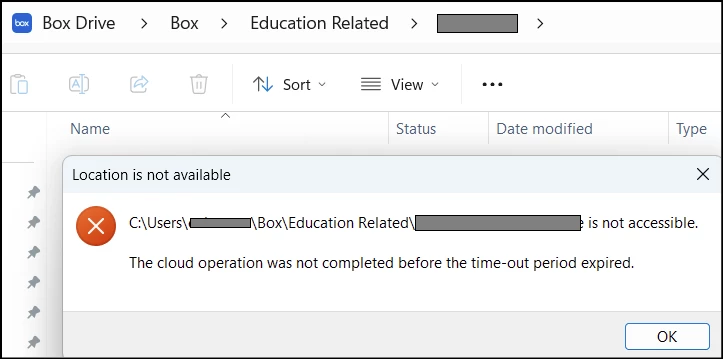
Location is not available the cloud operation was not completed before the time-out period expired

  • April 29, 2026
  • 1 reply
  • 23 views

This issue is getting frustrating, it is the third time I experience this in the last 8 months and keep having to reset Box Drive, sign out, delete AppData folder, sign back in, to get some folders to respond when they randomly get this location not found error.

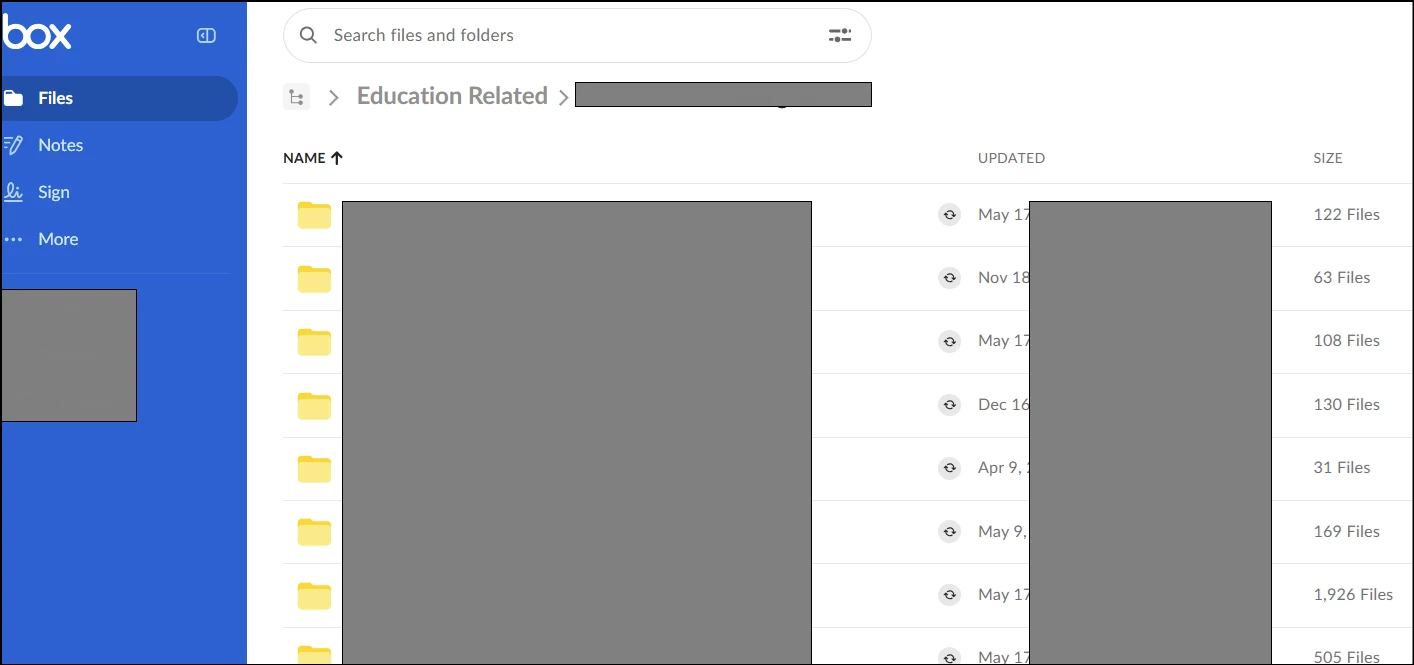
I have 15+ years experience with network and systems administration (win, mac, linux), so if a Box support person is going to respond/reply, please don’t ask basic questions about the network, everything on my end is 100% working fine except this Box drive app on this folder (was, until again, I sign out, delete Box AppData folder, and sign back in), the web version navigates to the folder just fine when the File Explorer “cloud operation” shows the time-out..

This post is being made so that it is at least documented, there has to be a root cause for this since I am not the only one experiencing it, and it did not just start. Having to sign out and back in and all that in order to get it working normally for an unknown amount of time should not be a solution..


On Windows 11 OS 25H2, Box Drive version 2.51.234...
 

​On web works perfectly fine..


1 reply

Rona Box
  • Community Manager
  • April 30, 2026

Hi ​@ealmonte32

Welcome to Box Community, and thanks for documenting this so clearly. I’m sorry you’ve had to go through this repeatedly.


I also understand you’ve already ruled out basic network or endpoint issues on your side, and you’re specifically looking to help identify the underlying root cause rather than repeat standard troubleshooting.


This time we would like to obtain the following information regarding your Box Drive application: 

  • Is it affecting just one folder or each folders from your local Box folder?
  • Is there a recent changes from the affected folder such as rename, move, permission change, reboot, or sleep/wake event? 
  • Did you uninstall and reinstalled your Box Drive application

Follow the instructions below to uninstall Box Drive

IMPORTANT
Any content in your Box Drive desktop location that has not yet successfully been uploaded to Box is deleted from your machine during the uninstall process. Be certain all of your content is uploaded to Box before proceeding. 

  1. Quit Box Drive
  2. Uninstall the application in the Control Panel.

Before removing all traces of Box Drive from your machine, first ensure that all hidden folders are visible.
To view hidden files and folders in Windows:

  1. In the Windows taskbar, open File Explorer.
  2. At the top of the File Explorer window, click View.
  3. In the View menubar, click Options and select Change folder and search options.
  4. At the top of tthe Folder Options window, click the View tab.
  5. In Advanced settings, check Show hidden files, folders, and drives.
  6. At the bottom of the window, click OK.

To remove all traces of the Box Drive application from your machine:

  1. Go to C:\ProgramData\Box and delete the Box subfolder.
  2. Open Registry Editor and delete HKEY_LOCAL_MACHINE\SOFTWARE\Box\Box.
  3. Go to C:\Users\[USER]\AppData\Local\Box and delete the Box subfolder.
  4. Open Registry Editor and delete HKEY_CURRENT_USER\SOFTWARE\Box\Box.
  5. Go to C:\Program Files\Box and delete the Box subfolder.
  6. If the machine has multiple user accounts, login using each user account and repeat steps 3 and  4.


Hope it helps, and please let us know how it goes!