

Question

Box tasks and collections failing to load

  • May 27, 2025
  • 4 replies
  • 191 views
  • Translate All

Forum|alt.badge.img

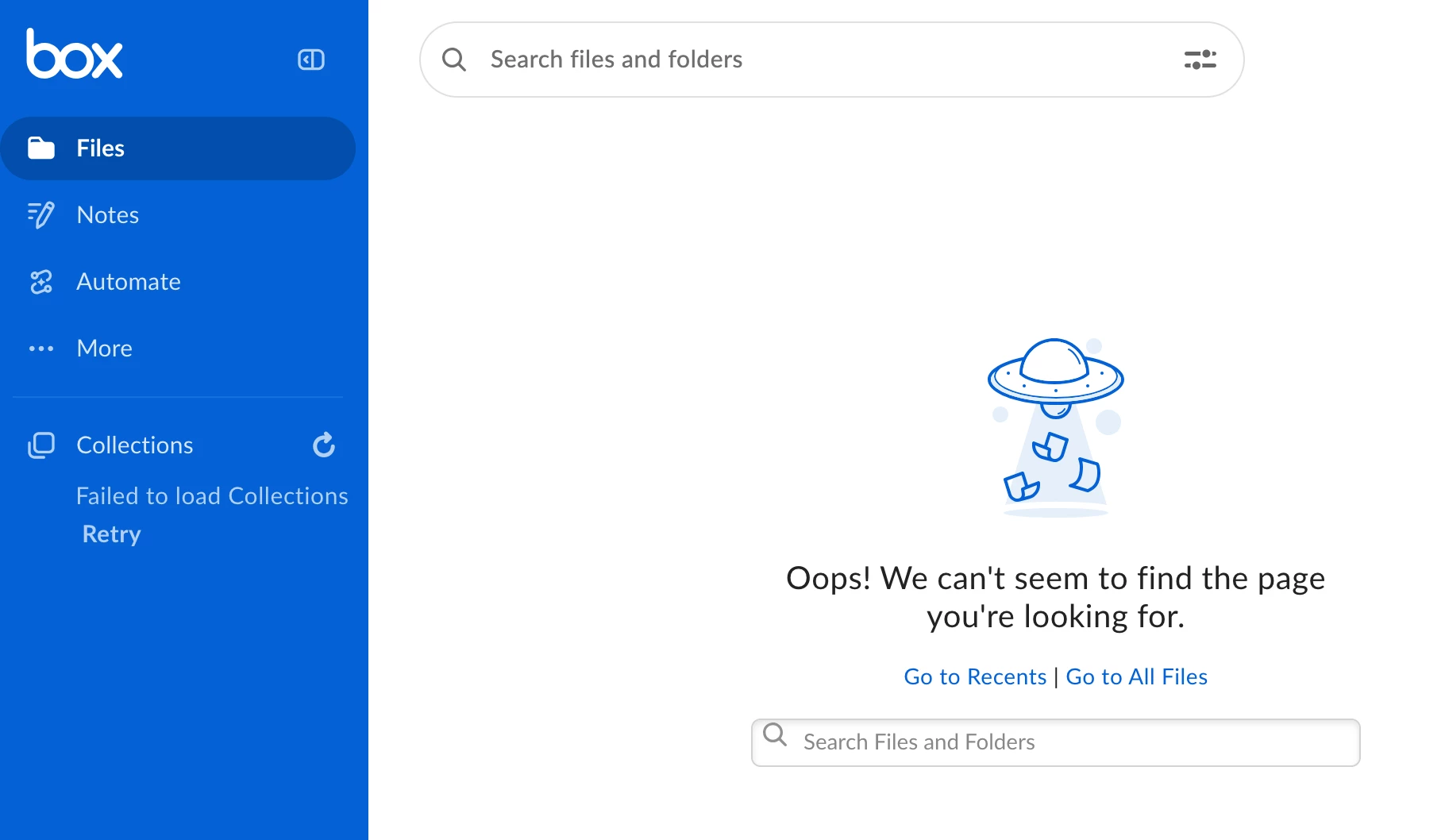
I recieve an error message when tryin gto open tasks and notifications:

iqi01JV25SA4PN6CEWWAZ8NWV4W4Q.png

I also get an error message stating that My collections fail to load:

taq01JV25TZ5SWA0QXH3A51PVXRT5.png

This issue occurs on Google Crome, MS Edge and Firfox as well as on the Apple mobile App. I have cleared cache, and restarted. Nothing fixes this issue.
 

4 replies

Forum|alt.badge.img

I am having the exact same issue and have cleared my cache and restarted. This has been happening for 2-3 weeks. I am in the most recent version of Google Chrome.

Translate

Also having this issue but the image is a little cuter now…

Using for work and co-workers also having this issue


Translate

  • New Member
  • September 12, 2026

What is going on? I’ve used different browsers & restarted computer but no luck. Box support, what is the issue with your service. I have many files on you site and need to get to them when needed. Please respond!

Translate

  • Community Manager
  • September 14, 2026

Hi ​@SABenedict,


Welcome to Box Community!


Errors such as "Error loading a tasks. Try again" and "Oops! We can't seem to find the page you're looking for" typically occur due to temporary session or browser cache issues, pending collaboration invitations, or changes in access permissions on the associated content.

To help resolve this, please try the following troubleshooting steps:

  1. Basic Browser & Session Checks
  • Refresh your browser page or log out of Box and log back in.
  • Open an Incognito / Private browsing window to test if cached data, stale cookies, or browser extensions are interfering with the page loading.
  • Clear your browser's cache and cookies.
  1. Check Collaboration Settings & Accept Pending Invitations If the task or notification relates to content where an invitation is still pending, the page may fail to load:
  • In the top right corner of your Box account, click your initials/profile icon and select Account Settings.
  • Go to the Sharing tab.
  • Under Collaborating on Content, ensure the box for Automatically accept incoming collaboration invitations is checked, then click Save Changes.
  • Check your Notification Center (bell icon) or your Files page to manually accept any pending folder or file invitations.
  1. Verify Item Permissions
  • Confirm with the item owner or your Box Admin whether the file/folder associated with the task has been moved, deleted, or if your collaborator permissions have been updated.

Hope this helps. 

Translate