
Question

Box starts up with error then closes

  • April 30, 2026
  • 1 reply
  • 16 views

Hi

I ran into the below problem...
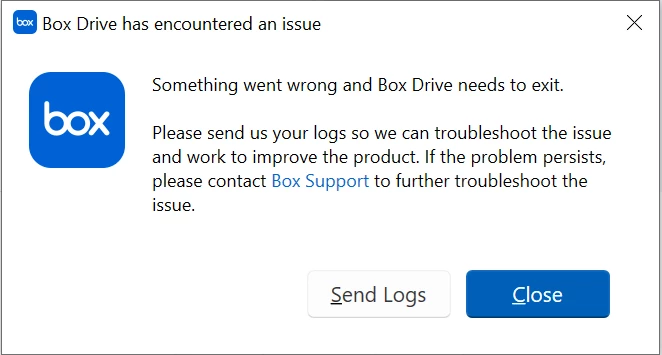
I don’t know what’s going on. This just happened all of a sudden this last month.

Is Box Drive still an active product? Or could it be because I’m on Windows 10 Pro and it’s too old for newer versions of Box?


Much appreciated.

1 reply

Rona Box
  • Community Manager
  • April 30, 2026

Hi ​@BoxOfBen

Welcome to Box Community, and we’ll be assisting in you removing this Box Drive error. 


In order to keep your local Box folder accessible, you can get rid of your error message with the troubleshooting steps below. 


Please try the following:

  1. Make sure that your Box Drive application is up to date. 
  2. Log out and log in from Box Drive. 
  3. Manually reset your Box Drive application (You can find the complete instructions below)
  4. Uninstall and reinstall your Box Drive application
  5. Lastly, restart your machine. 


 Manually Resetting Box Drive

In rare instances Box Drive fails to launch. Manually resetting Box Drive can often resolve this.

 New Version - To reset Box Drive on Windows 

  1. Exit Box Drive (if it is running). If necessary, use Task Manager to end the Box.exe process.
  2. Run command
    "C:\Program Files\Box\Box\FS\cf\cfctl.exe" drive reset Box
    on command prompt. Files not uploaded to Box will be saved to the Desktop with a timestamp.
    1. The output should say “Box Drive reset completed successfully” at the end. If this is not so, then it may be that some files were still open and could not be deleted. Once everything is closed, a re-run of step 2 should be successful.
  3. From RegEdit, delete the registry entries under HKEY_CURRENT_USER/Software/Box/Box to clear Box preferences.
  4. Restart the Box Drive and follow the prompt to log back in.

If you are still having trouble, open a support ticket.

 Legacy Version - To reset Box Drive on Windows 

  1. Exit Box Drive (if it is running). If necessary, use Task Manager to end the Box.exe process.
  2. Ascertain whether any files exist in C:\users\[USERNAME]\AppData\Local\Box\Box\unsyncedFiles. These are files that have not been uploaded to Box. If these files do exist, and if you want to keep them, copy them to any location outside of C:\users\[USERNAME]\AppData\Local\Box\Box\ (such as your desktop). Proceeding with the steps below deletes these files.
  3. Delete this folder: C:\users\[USERNAME]\AppData\Local\Box\Box.
  4. From RegEdit, delete the registry entries under HKEY_CURRENT_USER/Software/Box/Box to clear Box preferences.
  5. Restart the Box Drive and follow the prompt to log back in.


Hope it helps!  Let us know how it goes.