Question

Asking to log in despite using shared link?

  • June 12, 2025
  • 6 replies
  • 375 views

 I frequently use Box to share files with customers by creating the shared link.  On my most recent upload, when someone tries to access they are being asked to log into box.  This hasn’t happened before, does anyone know what might be causing the issue?

6 replies

Rona Box
  • Community Manager
  • June 13, 2025

Hi ​@ECARTER

Welcome to Box Community and we’re glad to assist!


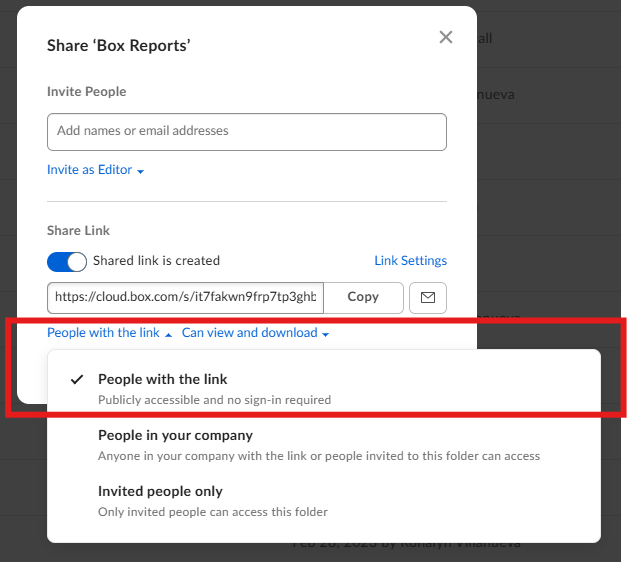
You might want to confirm if the shared link access type is modified accordingly. To grant access to your Box content for non-Box users, please make sure that you’ve set its access type to “People with the link.” 

Creating a link to share:

  1. In your Box files view, hover your cursor over the row of the file or folder you wish to share.
  2. On the right, click (Create and) Copy Shared Link (Shared_link_icon.png). 

    The Shared Link window opens.  The link automatically copies to your clipboard.


That's it.  You can now paste that link into the app of your choice -- email, messaging, and so on -- to share your content.


Thanks for posting! Please let us know if you need additional assistance. 


  • New Member
  • July 17, 2026

Over the past week, I have experienced an issue with newly created shared links in Box.

When I create a shared link from either the Box app or the web platform, I confirm that the access setting is configured for public access and that recipients should not be required to sign in or create a Box account.

However, when recipients open the link, they are redirected to the full Box homepage and prompted to sign in or create an account. This is not a small login banner or pop-up at the top of the page; it prevents them from accessing the folder entirely.

I have reviewed the shared-link settings multiple times and confirmed that “People with the link” or the equivalent public-access option is selected.

Has there been a recent change to public shared links, or is this a known issue? Please advise on how I can restore access so recipients can open the folder without signing in or creating a Box account.


Jey Bueno Box
Forum|alt.badge.img
  • Community Manager
  • July 17, 2026

👋 Hi ​@Geo SGE, welcome to the Box Community! I’d be happy to help.


There has not been a recent change to the core functionality of public shared links (“People with the link”), which still allow anyone with the URL to view and download content without requiring a Box account or signing in.


However, the issue you are experiencing is a known behavior typically caused by one of the following configurations or settings on your Box account:


1. The Shared Link is configured for “Can Edit”


In June 2022, Box introduced Editable Shared Links. If your shared link’s permission is set to “Can Edit” (allowing recipients to edit, annotate, or comment on files/folders):

  • Logged-in users can edit the content directly.
  • Anonymous/unauthenticated users (recipients who are not logged in) must sign in or create a Box account to edit. If they do not log in, they will be blocked from editing and redirected to sign in, or they may only be allowed to view/download depending on the specific item type and folder restrictions.
  • ✅ Solution: Change the shared link permission from “Can Edit” to “Can view and download” or “Can view only”. This will restore frictionless, anonymous access without requiring a login.
     

2. Folder-level collaboration restrictions


If the folder you are sharing (or any of its parent folders) has specific security restrictions enabled, it can override your public shared link settings:

  • If the folder settings are configured to restrict access (e.g., “Only collaborators can access this folder via shared links” is checked), any public shared link will be automatically restricted to invited collaborators only, forcing a login prompt.
  • ✅ Solution:
    1. Right-click (or click the ellipsis ...) on the folder and select Settings to open the Folder Settings page.
    2. Scroll to the Shared Link Access section.
    3. Ensure that the checkbox “Only collaborators can access this folder via shared links” is unchecked.
    4. Click Save Changes.
       

3. Password protection or link expiration


Although you confirmed the link is set to “People with the link,” double-check if a password or expiration date has been accidentally applied. While password-protected links are supported on paid accounts, they can sometimes trigger unexpected login prompts if the browser session is confused or if the recipient tries to perform actions beyond basic viewing.


If the issue persists, please submit a ticket to our Product Support so they can further investigate. Thank you!


  • New Member
  • July 17, 2026

Hi Jey, thank you for the detailed response.

I have already reviewed and tested each of the settings you outlined. The shared links are set to “Can view and download,” the folder-level restriction limiting access to collaborators is not enabled, and there is no password protection or expiration date applied.

I have also recreated the links from both the Box app and the web platform and tested them in both Chrome and Safari. In each case, recipients are still redirected to the full Box sign-in page and asked to create an account before they can access the folder.

Since the configuration appears to be correct, I have submitted a support ticket for further investigation and am currently waiting for a response. I wanted to update this thread in case other users are experiencing the same issue or there is a broader account-level or platform-related problem.


Jey Bueno Box
Forum|alt.badge.img
  • Community Manager
  • July 17, 2026

@Geo SGE Thank you for taking the time to review your settings to ensure everything is configured properly. I see that you have successfully opened a support ticket - thank you for doing that!


While our support team works on sorting this out, we want to make sure we haven't missed any quick troubleshooting steps. Could you please check the following:

  1. Account-level sharing restrictions: Even if an individual folder's link is configured for public access, your overall account settings can override and restrict this behavior. To verify this, please go to your Profile > Account Settings > Sharing tab. Under the Shared Links section, locate the setting for "People who can access shared links" (or "Default access for new links") to ensure it allows the level of access you need.

  2. Does this issue occur with shared links for both folders and individual files? If you haven't already, please try creating a shared link directly to an individual file rather than the parent folder to see if the behavior persists.

  3. To rule out a browser-related issue (such as cached, expired, or conflicting Box session cookies), users can try accessing the shared links using a different browser or a private/incognito window. If the links can be accessed without a login prompt in incognito mode, the issue is likely caused by cached browser cookies on the recipient's side. This can be easily resolved by having them clear their browser cache and cookies.


We appreciate your patience as we get this resolved for you!


  • New Member
  • July 17, 2026

I reviewed the account-level sharing settings, and the shared-link access is configured correctly for the level of public access I need.

Also tested the link in a private/incognito browser window, and the same issue occurred. The link still goes to sign-in page and requires sign in or create an account.