Hey everyone,
Known Folder Redirection is one of the most-requested features we've shipped for Box Drive on Windows, and getting it deployed via Intune has a few non-obvious steps. Here's a guide that walks through the full setup — happy to answer questions in the comments.
Overview
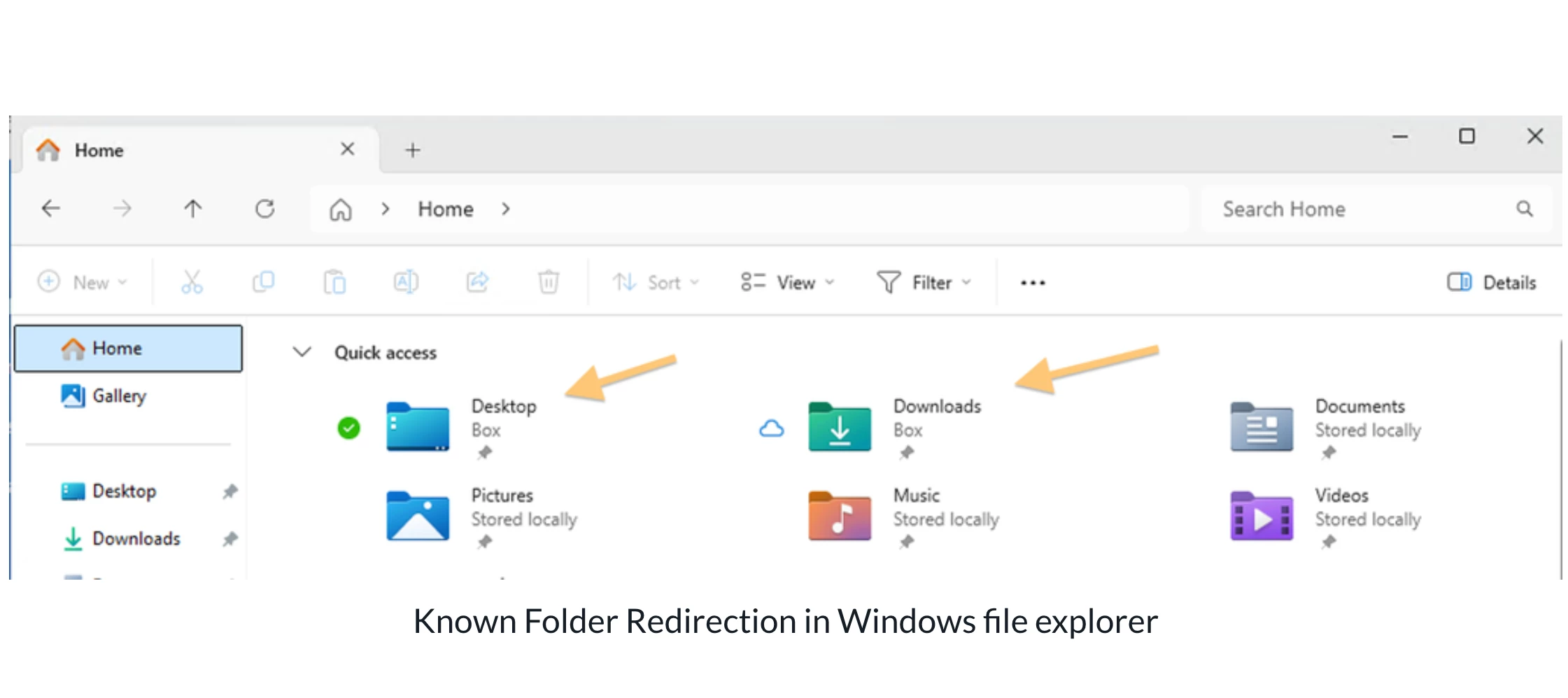
Known Folder Redirection (KFR) allows Windows users to automatically redirect well-known local folders — such as Desktop, Documents, Pictures, and Downloads — to a location inside Box Drive. Once redirected, files saved to these folders are automatically synced to Box, giving users access across any device, ensuring content security, and simplifying device migrations.
Important: Known Folder Redirection (KFR) is supported only on the new version of Box Drive built on the new architecture. The legacy version of Box Drive on Windows does not support folder redirection. See the Prerequisites section before proceeding.
Prerequisites
1. Box Drive Version Requirement
Known Folder Redirection (KFR) requires the new version of Box Drive built on the new architecture. The legacy version of Box Drive on Windows does not support this feature.
-
Confirm that your organization's Box Drive deployment is running the new architecture version.
-
Box Drive version 2.51 or later.
2. Microsoft Intune Requirements
-
An active Microsoft Intune (Endpoint Manager) tenant with device enrollment.
-
Devices must be Azure AD Joined or Hybrid Azure AD Joined.
3. User & License Requirements
-
Users must have an active Box account with Box Drive installed and signed in.
How Known Folder Redirection Works
When KFR is enabled, Windows redirects the path of a well-known folder (e.g., C:\Users\<username>\Documents) to a corresponding folder inside the Box Drive mount point. Box Drive ensures the redirected folder's metadata is always available locally, so applications that expect these folders to be accessible continue to function even if Box Drive is not running.
Supported Folders (Windows)
Box Drive KFR supports redirection of all Windows known folders. Any folder registered with Windows via the IKnownFolderManager API is eligible — there is no restriction on which known folders can be redirected.
The table below lists the most commonly redirected folders and their registry value names. Admins can extend the PowerShell script in Step 2 to include any additional known folder by adding the appropriate Known Folder GUID and target subfolder
name to the $KnownFolders mapping.
| Folder | Known Folder GUID |
|---|---|
| Desktop | {B4BFCC3A-DB2C-424C-B029-7FE99A87C641} |
| Documents | {FDD39AD0-238F-46AF-ADB4-6C85480369C7} |
| Pictures | {33E28130-4E1E-4676-835A-98395C3BC3BB} |
| Downloads |
|
Key Behavioral Rules
-
Enabling KFR redirects the folder path only — existing files in the redirected folders are not moved to Box. They remain at their original local path until
the user moves them manually.
-
Redirected folders are locked against remote Move and Delete operations via the Box Folder Lock API. Rename is not preventable at the API level on Windows
-
If a user logs out of Box Drive, the known folder is no longer backed up in Box, but local folder contents remain unchanged.
-
If a user uninstalls Box Drive, the known folder is no longer backed up in Box, but local folder contents remain unchanged.
-
If a user deletes the redirected folder in Box Drive, the contents of the known folder on the local drive remain unchanged.
-
Redirected folders are personal and will not be shared with service accounts, even if the enterprise has service accounts set as default owners.
-
Files in redirected folders go through standard Box conversion, malware scanning, and classification flows.
-
Users can share and collaborate on redirected folders just like any other Box folder.
Deployment via Microsoft Intune
Deploy via PowerShell Script in Intune
This method uses a PowerShell script deployed through Intune to set the registry values that redirect known folders to Box Drive.
Step 1 — Identify the Box Drive Mount Path
Confirm the exact Box Drive mount path used in your environment. If your organization uses a custom mount point, replace the path in the script below accordingly.
The default Box Drive mount path on Windows is:
C:\Users\<username>\Box
Step 2 — Create the PowerShell Script
Create a .ps1 file with the following content. This script sets the registry value EnableCloudFiles under HKEY_LOCAL_MACHINE\Software\Box\Box (required to opt in to the new architecture version) and additional registry values under HKEY_CURRENT_USER\Software\Microsoft\Windows\CurrentVersion\Explorer\User Shell Folders to redirect the known folders.
Note: The
EnableCloudFilesregistry key is required only while the new architecture version is not yet the default for your organization. Once Box Drive's new architecture becomes the default for all enterprise users, this step will no longer be needed. See How to opt in to the new version of Box Drive for Windows for current rollout status.
Important: This script redirects the folder path only — it does not move existing files. Any files already in Desktop, Documents, Pictures, or Downloads will remain in their original local location and will not appear in Box. Users who want their existing data backed up in Box must move those files manually into the redirected folder after the script is applied.
# ============================================================
  # Box Drive - Known Folder Redirection Setup Script
  # Deploys via Microsoft Intune (runs in user context)
  # ============================================================

  # Update $BoxDrivePath below if your organization uses a custom Box Drive mount point
  $BoxDrivePath = "$env:USERPROFILE\Box"

  # Opt in to the new architecture version of Box Drive — required for KFR to work
  $BoxRegPath = "HKLM:\Software\Box\Box"
  if (-not (Test-Path $BoxRegPath)) {
      New-Item -Path $BoxRegPath -Force | Out-Null
  }
  New-ItemProperty -Path $BoxRegPath -Name "EnableCloudFiles" -PropertyType DWord -Value 1 -Force | Out-Null
  Write-Host "Set 'EnableCloudFiles' to '1' under '$BoxRegPath'"

  # Load SHSetKnownFolderPath via P/Invoke
  $code = @"
  using System;
  using System.Runtime.InteropServices;

  public class KnownFolders {
      [DllImport("shell32.dll")]
      public static extern int SHSetKnownFolderPath(ref Guid rfid, uint dwFlags, IntPtr hToken, [MarshalAs(UnmanagedType.LPWStr)] string pszPath);

      [DllImport("shell32.dll")]
      public static extern void SHChangeNotify(int wEventId, uint uFlags, IntPtr dwItem1, IntPtr dwItem2);
  }
  "@
  Add-Type -TypeDefinition $code

  # Define known folder GUIDs and target subfolders
  # Add or remove entries below to match your organization's requirements
  $KnownFolders = @{
      "{B4BFCC3A-DB2C-424C-B029-7FE99A87C641}" = "Desktop"
      "{FDD39AD0-238F-46AF-ADB4-6C85480369C7}" = "Documents"
      "{33E28130-4E1E-4676-835A-98395C3BC3BB}" = "Pictures"
      "{374DE290-123F-4565-9164-39C4925E467B}" = "Downloads"
  }

  foreach ($folder in $KnownFolders.GetEnumerator()) {
      $targetPath = Join-Path -Path $BoxDrivePath -ChildPath $folder.Value

      # Create the target folder in Box Drive if it does not exist
      if (-not (Test-Path $targetPath)) {
          New-Item -ItemType Directory -Path $targetPath -Force | Out-Null
      }

      # Redirect the known folder using the Windows API
      $guid = [Guid]$folder.Key
      $result = [KnownFolders]::SHSetKnownFolderPath([ref]$guid, 0, [IntPtr]::Zero, $targetPath)
      if ($result -eq 0) {
          Write-Host "Redirected '$($folder.Key)' ($($folder.Value)) to '$targetPath'"
      } else {
          Write-Warning "Failed to redirect '$($folder.Key)' ($($folder.Value)) — HRESULT: $result"
      }
  }

  # Notify the shell of the change
  [KnownFolders]::SHChangeNotify(0x08000000, 0x0000, [IntPtr]::Zero, [IntPtr]::Zero)

  Write-Host "Known Folder Redirection complete."
Review the
$KnownFoldersmapping above and remove any folders your organization does not want to redirect (e.g., removeDownloadsif not required). To redirect additional known folders, add the corresponding registry value name and target subfolder name.
Step 3 — Upload the Script to Intune
-
Sign in to the Microsoft Intune admin center.
-
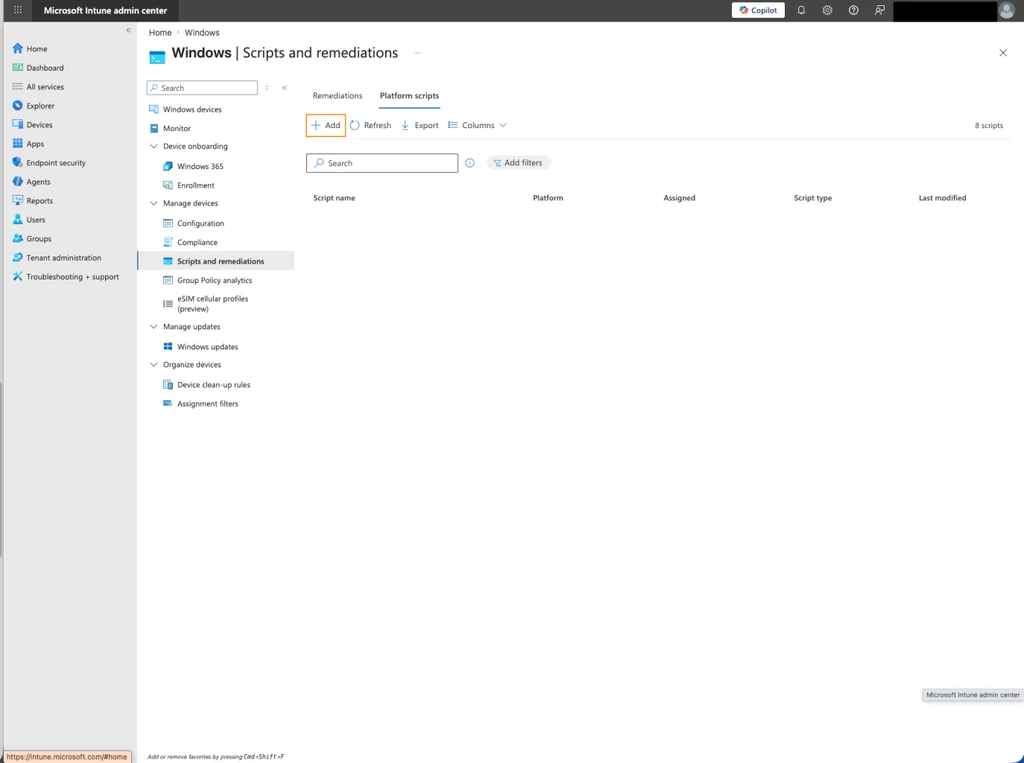
Navigate to Devices → Scripts and remediations → Platform scripts.
-
Click + Add → Windows 10 and later.
-
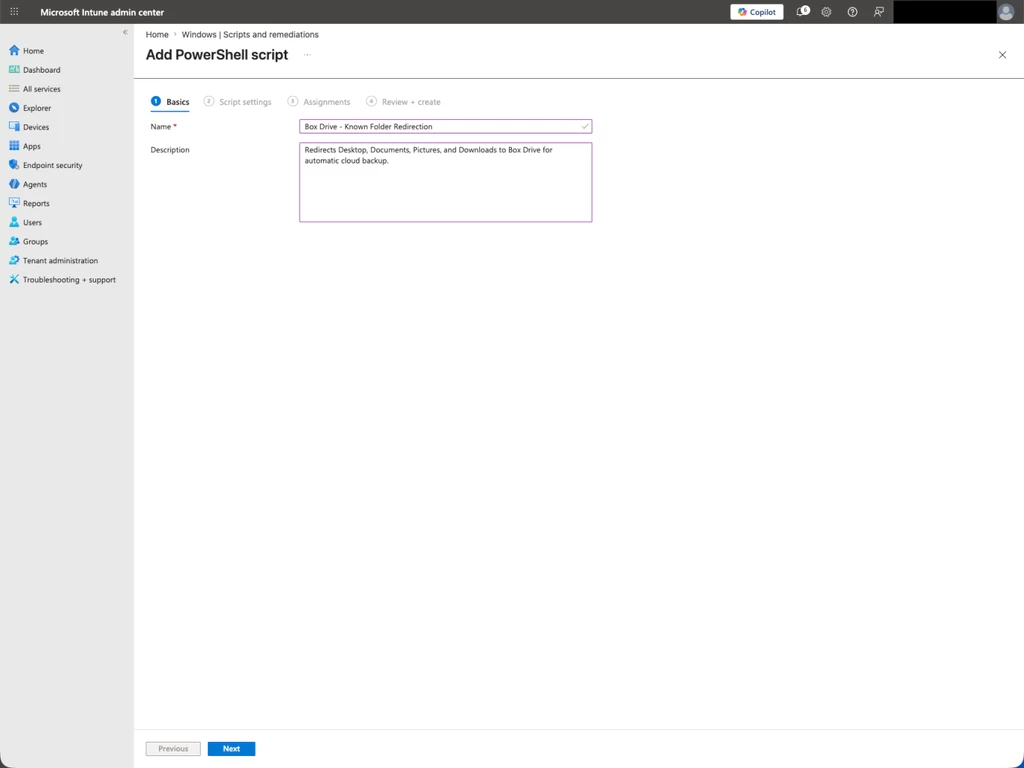
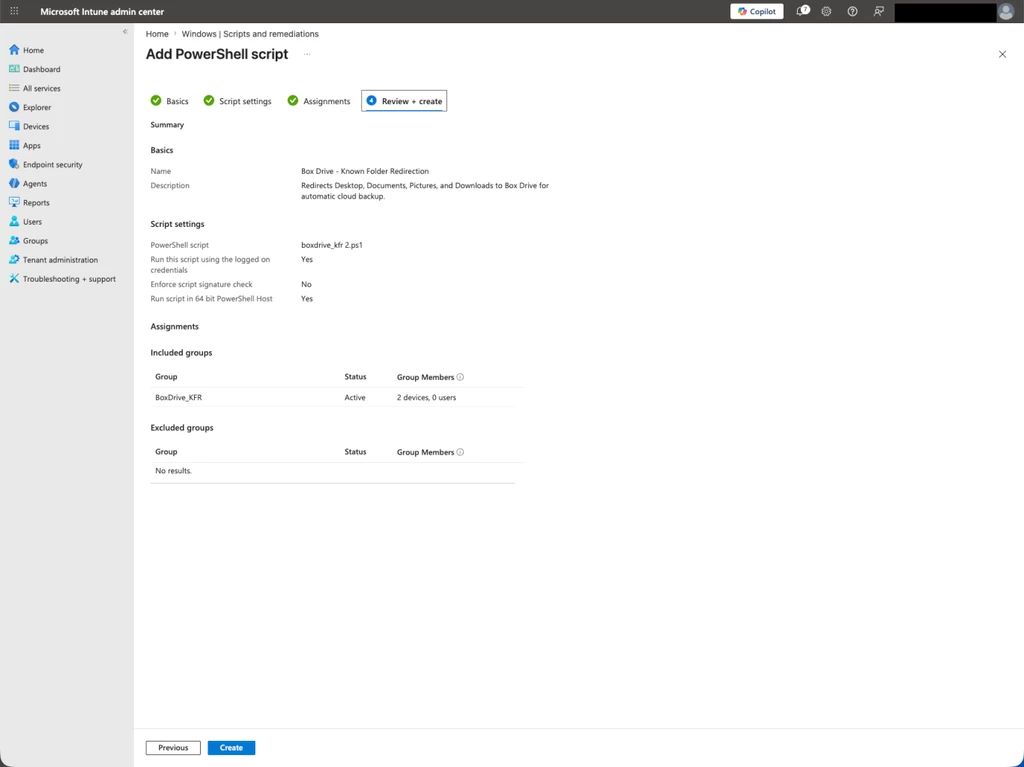
Fill in the following:
-
Name:
Box Drive - Known Folder Redirection -
Description: Add a brief description, e.g., "Redirects Desktop, Documents, Pictures, and Downloads to Box Drive for automatic cloud backup."
-
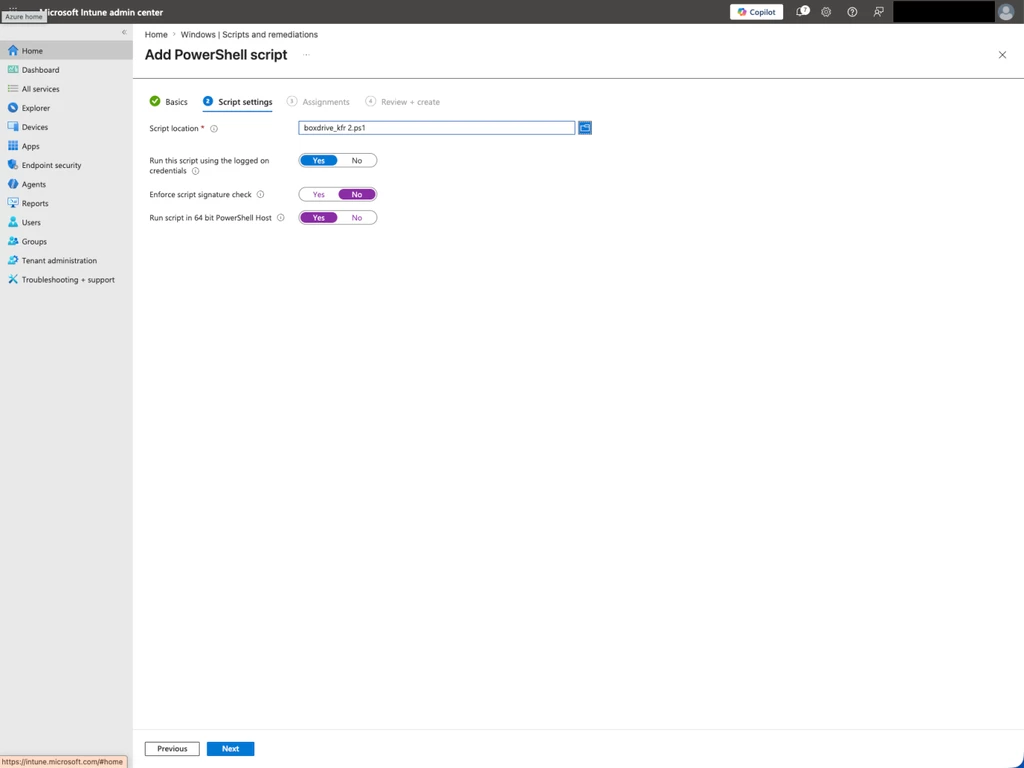
Script file: Upload the
.ps1file created in Step 2. -
Run this script using the logged-on credentials: Yes (required — the script must run in user context to write to HKCU)
-
Enforce script signature check: Set per your organization's security policy. Set No if unsure.
-
Run script in 64-bit PowerShell host: Yes
-
-
Click Next.
Step 4 — Assign the Script
-
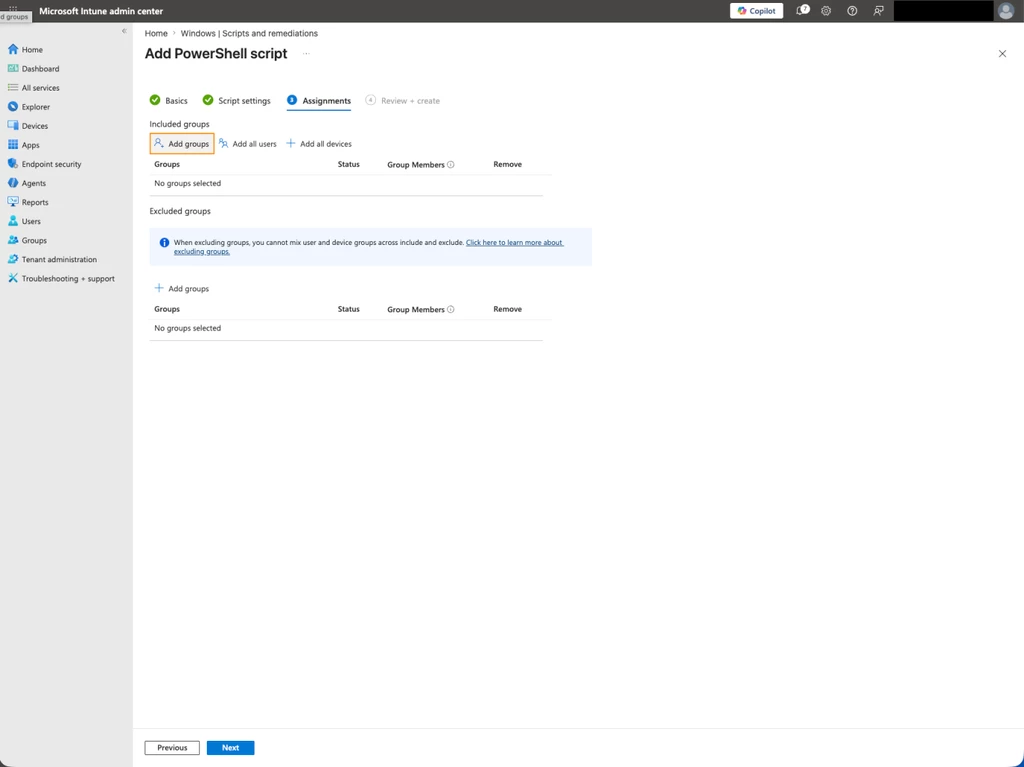
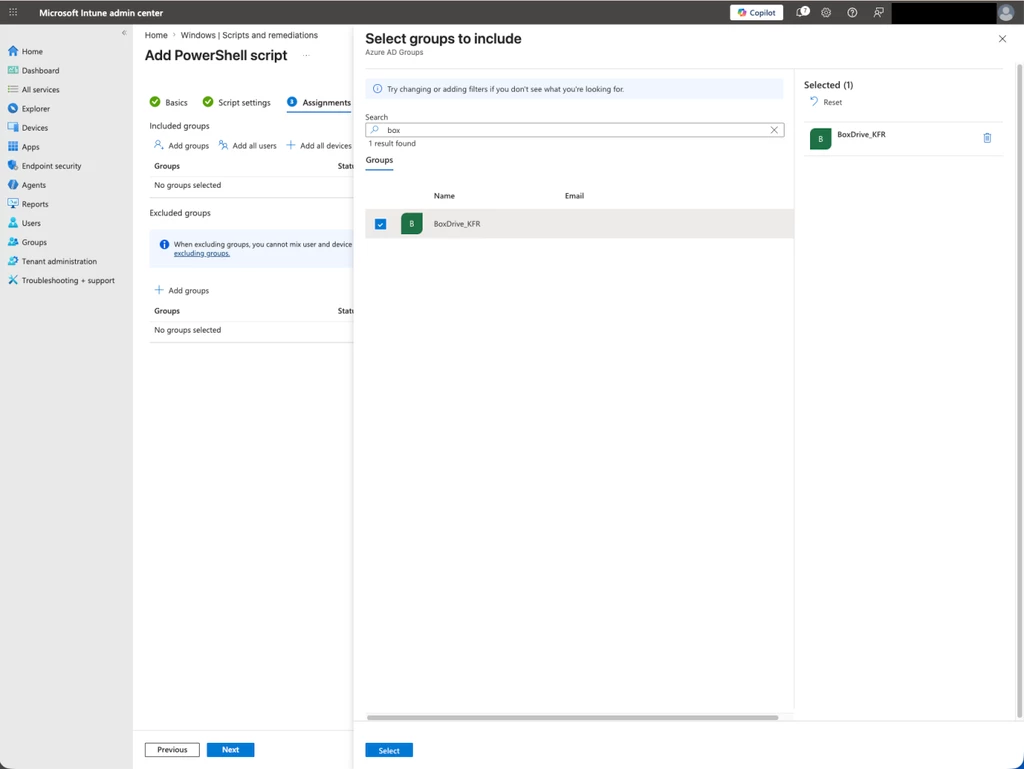
Under Assignments, click + Add group.
-
Select the Azure AD user group(s) or device group(s) that should receive KFR.
-
Click Next → Review + save.
Step 5 — Monitor Deployment
-
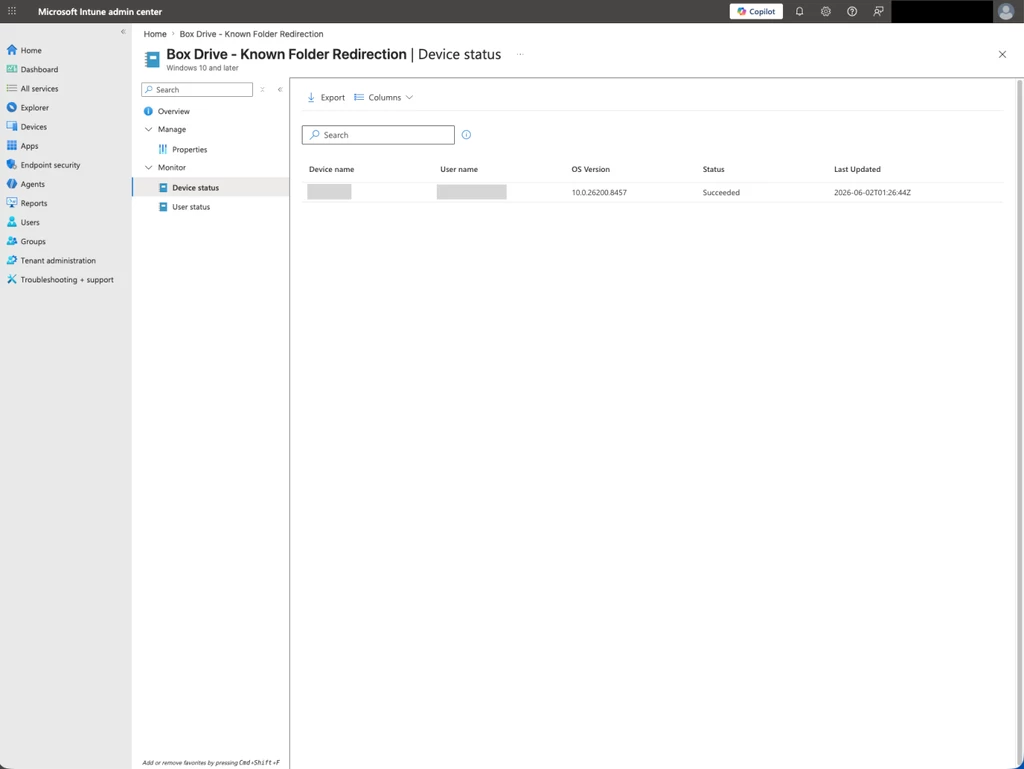
Navigate to Devices → Scripts and remediations → Platform scripts.
-
Select the script and review the Device status and User status tabs.
Post-Deployment Verification
After the script has been applied, verify KFR is working correctly on a test device:
-
Sign in to Box Drive on the test device.
-
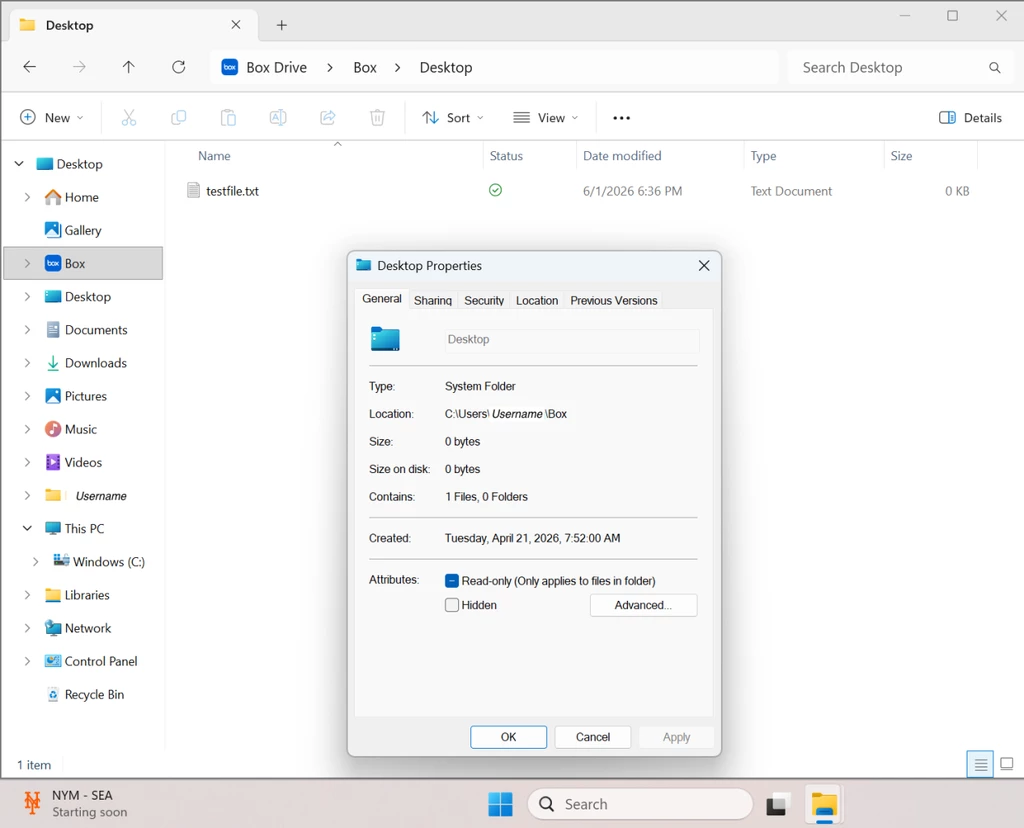
Open File Explorer and confirm that each folder you configured for redirection now points to the Box Drive path (e.g.,
C:\Users\<username>\Box\Desktop).
-
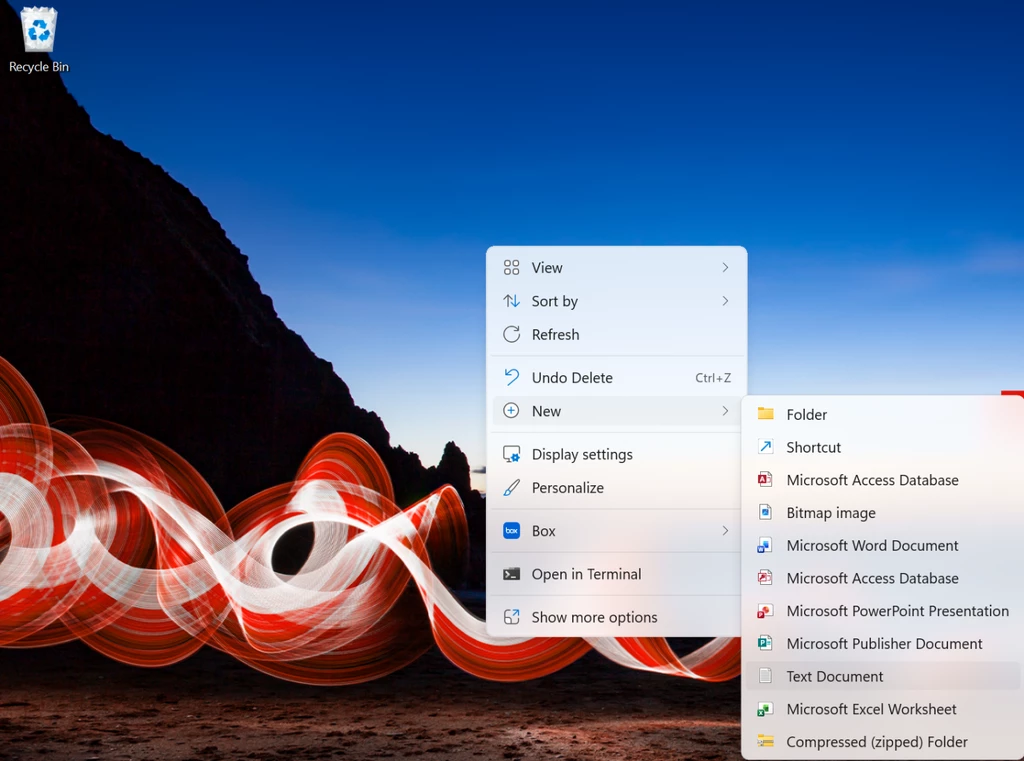
Create a test file in the redirected folder and confirm it appears in Box (web or mobile).
-
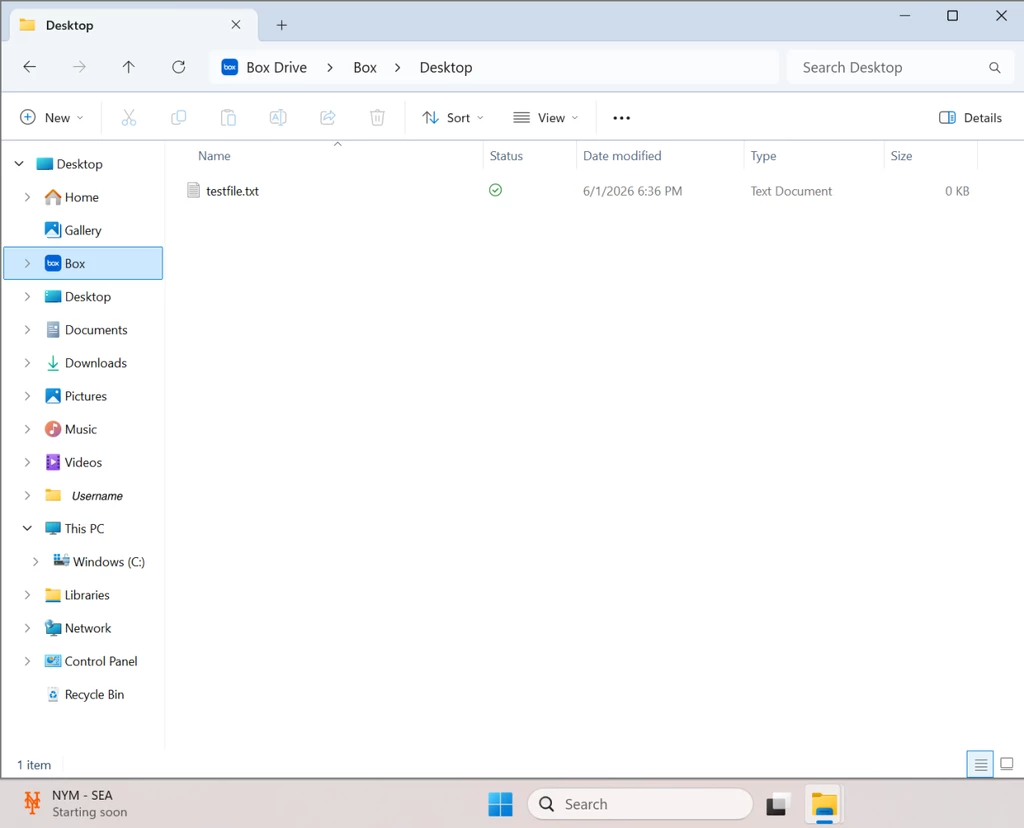
Confirm that sync icons appear next to the redirected folders and their contents in File Explorer.

-
Verify the Box Drive tray icon shows sync activity and completes without errors.
Known Behaviors & Limitations
| Scenario | Expected Behavior |
|---|---|
| User logs out of Box Drive | Folder redirection stops; local folder contents are preserved |
| User uninstalls Box Drive | Folder redirection stops; local folder contents are preserved |
| User deletes the redirected folder in Box | Local folder contents are unchanged |
| Remote Move or Delete of redirected folder | Blocked via Box Folder Lock API; a Problem Item is created |
| Remote Rename of redirected folder | Not blocked — Windows uses file path (not file ID), so a rename will affect the redirect path. |
Troubleshooting
| Issue | Steps to Resolve |
|---|---|
| Redirected folder not syncing | Ensure Box Drive is running and signed in. Check the tray icon for sync errors or Problem Items. |
| Registry values not applied | Confirm the Intune script ran in user context (HKCU). Check Intune device/user status reports. |
Related Resources
— Andriy, Product Manager @ Box Drive