

We've been busy making Box Notes a better place to review, refine, and work together. This quarter brings a more unified commenting experience across Notes and Preview, alongside a set of interface updates and shortcuts designed to make everyday editing faster and cleaner.
On the collaboration side, comments and annotations now live together in a single comment pane. Box Notes will no longer distinguish between comments on the overall note and annotations on specific content — both appear together for a more consistent review flow. In Preview, both types are also surfaced under the Activity pane. You can reply to any comment within a threaded conversation and use @mentions to loop in the right collaborators. When a discussion wraps up, mark the thread as resolved — it'll move into a Resolved filter and can be reopened later if needed. Original authors can delete their own comments, but note that deleting a root comment deletes the entire thread. And if you rely heavily on comments, drag the pane divider to the left to expand your commenting workspace.
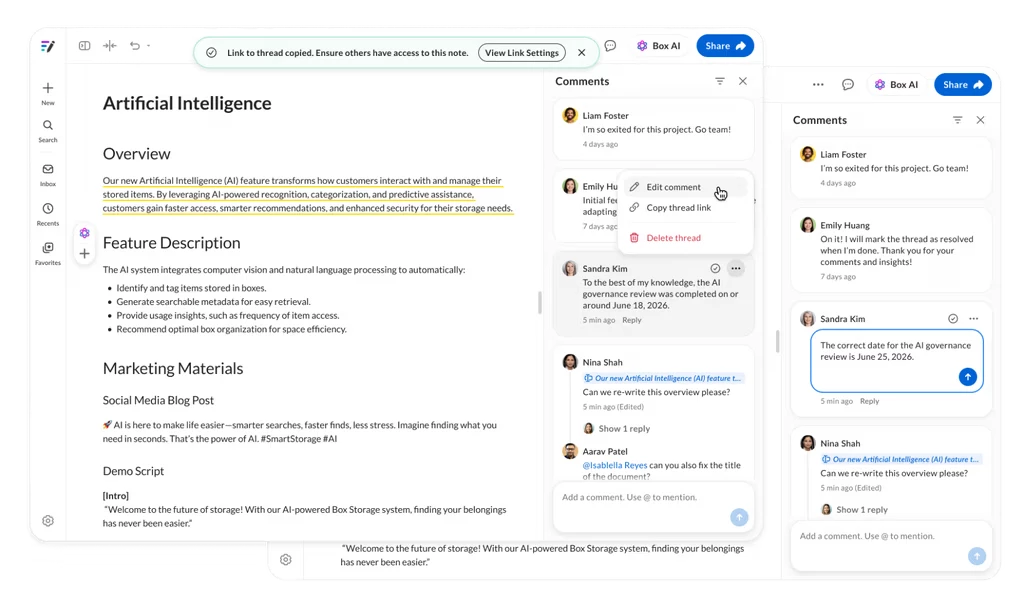
A few limitations to keep in mind: viewers accessing a Note through a shared link can only comment on the full document (not specific parts), though they can view and reply to all threads. In Preview, users with Uploader permissions cannot leave comments or annotations, and users with Preview Uploader or Previewer permissions remain limited to drawing annotations only.
Alongside the collaboration updates, we're rolling out a series of small but mighty interface improvements that make working in Notes faster and more intuitive. You can now crop images inline — select an image and drag its corners or edges to adjust size, and it will automatically rescale. Use the "adjust" button at the top right of a selected image to fine-tune positioning within the frame. Typing / anywhere in a Note opens a slash menu where you can quickly insert tables, callouts, inline AI chats, dates (via the new datepicker), and more. Quick search has also been redesigned for a sleeker, faster experience when finding your Notes. To reduce clutter, the "Settings" and "More options" menus have been merged into one — click the three dots (ellipses) in the top right to access everything in one place, including an improved display of keyboard shortcuts to help you move through your work even faster.