
Question

No PDF option for saving in M365 Programs on Windows

  • June 18, 2026
  • 1 reply
  • 146 views

When I go to "Save a Copy" of my Word or Excel documents that I opened in Box... there are no options to save as a PDF... just gives a couple of basic options. See the screenshot below. I can go and browse and find the location again and through that method I can get the right options, but just the basic... save a copy... it doesn't exist. This works on my Mac as expected and works if I am using OneDrive... but for some reason I can't get it to work on Windows using Box.
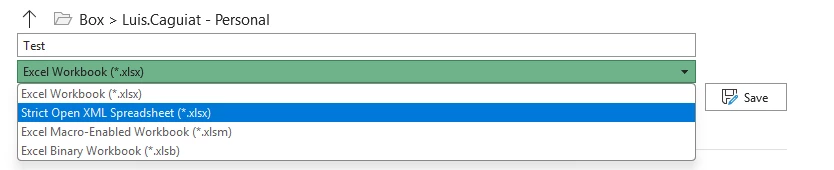



1 reply

Jey Bueno Box
Forum|alt.badge.img
  • Community Manager
  • June 19, 2026

👋 Hi ​@0hlewis, welcome to the Box Community!


The behavior you are experiencing is due to a fundamental difference in how Microsoft Office integrates with cloud storage providers on Windows versus macOS.


When you open a file from Box on Windows, Microsoft Office treats it as a locally cached file. In the Windows version of Microsoft 365 desktop applications (Word, Excel, PowerPoint), the “Save a Copy” menu is designed primarily for Microsoft’s native cloud services (OneDrive and SharePoint).


When working with third-party storage providers like Box, Windows Office applications restrict the “Save a Copy” Backstage view to basic options and do not display the full range of file formats (such as PDF) directly in that simplified menu.


On macOS, Microsoft Office utilizes different system-level file-handling APIs that allow Box Drive to integrate more seamlessly with the native save dialogs, which is why you see the PDF option there as expected.


✅ Recommended workarounds on Windows


To save your Box-opened Word or Excel documents as a PDF on Windows, you can use either of the following standard methods:

  1. Use the “Export” Menu (Fastest Method):

    • Go to File > Export.
    • Click Create PDF/XPS Document.
    • Click the Create PDF/XPS button. This will open the standard Windows save dialog, allowing you to save the PDF directly back into your Box Drive folder.
  2. Use the Traditional “Save As” Dialog:

    • Go to File > Save As (instead of “Save a Copy”).
    • Click Browse to open the traditional Windows File Explorer dialog.
    • In the Save as type drop-down menu, select PDF (.pdf)*.
    • Navigate to your Box Drive directory and click Save.
  3. Use "Print to PDF":

    • Go to File > Print (or press Ctrl + P).
    • Select Microsoft Print to PDF as your printer.
    • Click Print and choose your Box Drive folder as the destination.
