Hi Karol!
Thanks for the write-up. After going through our documentation, I can explain what's happening with each of the three issues you're seeing. The root cause ties back to a combination of a known UI behavior in the Integration Credentials panel and plan-tier feature availability.
Issue 1: Save Button Stays Disabled After Editing
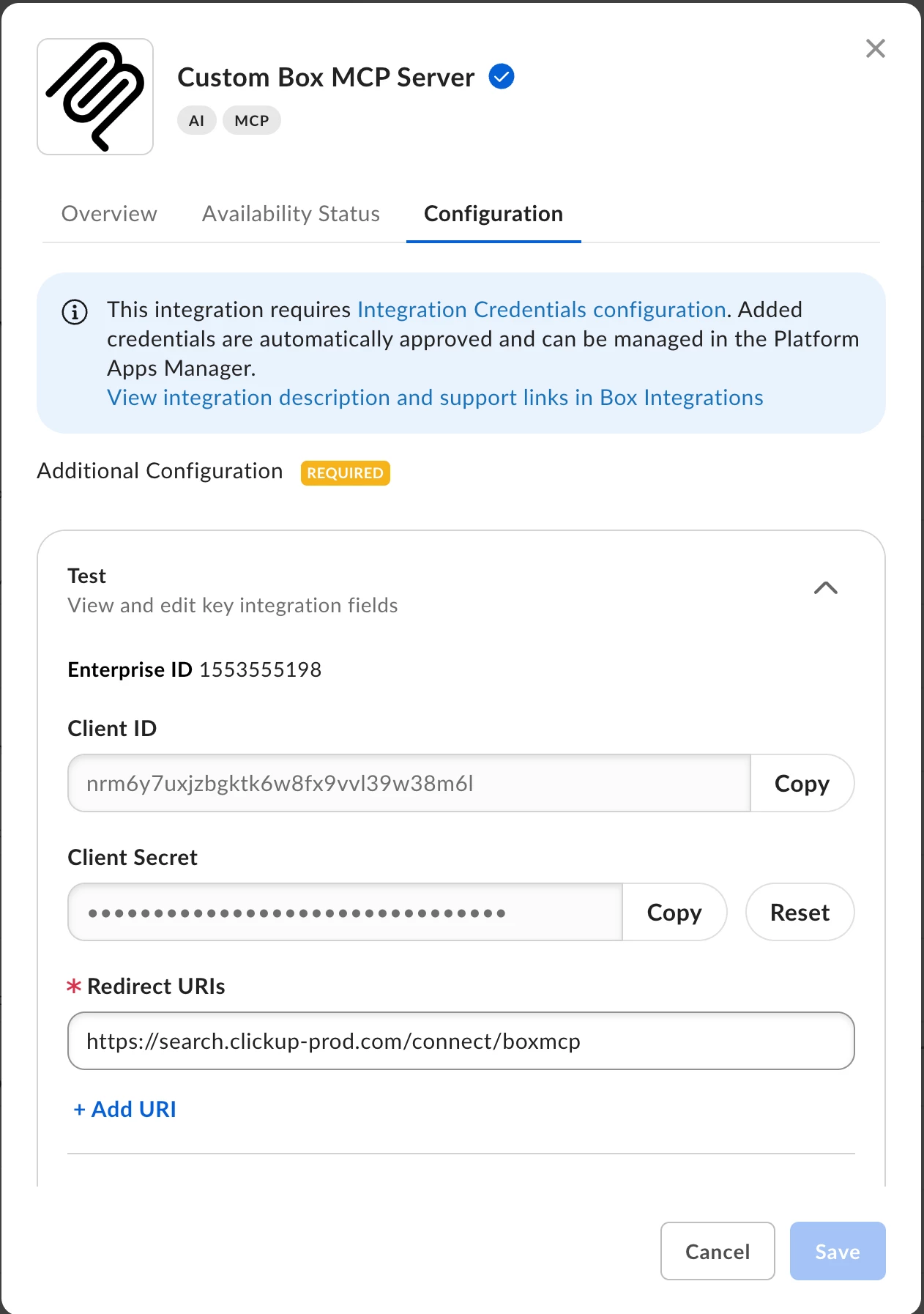
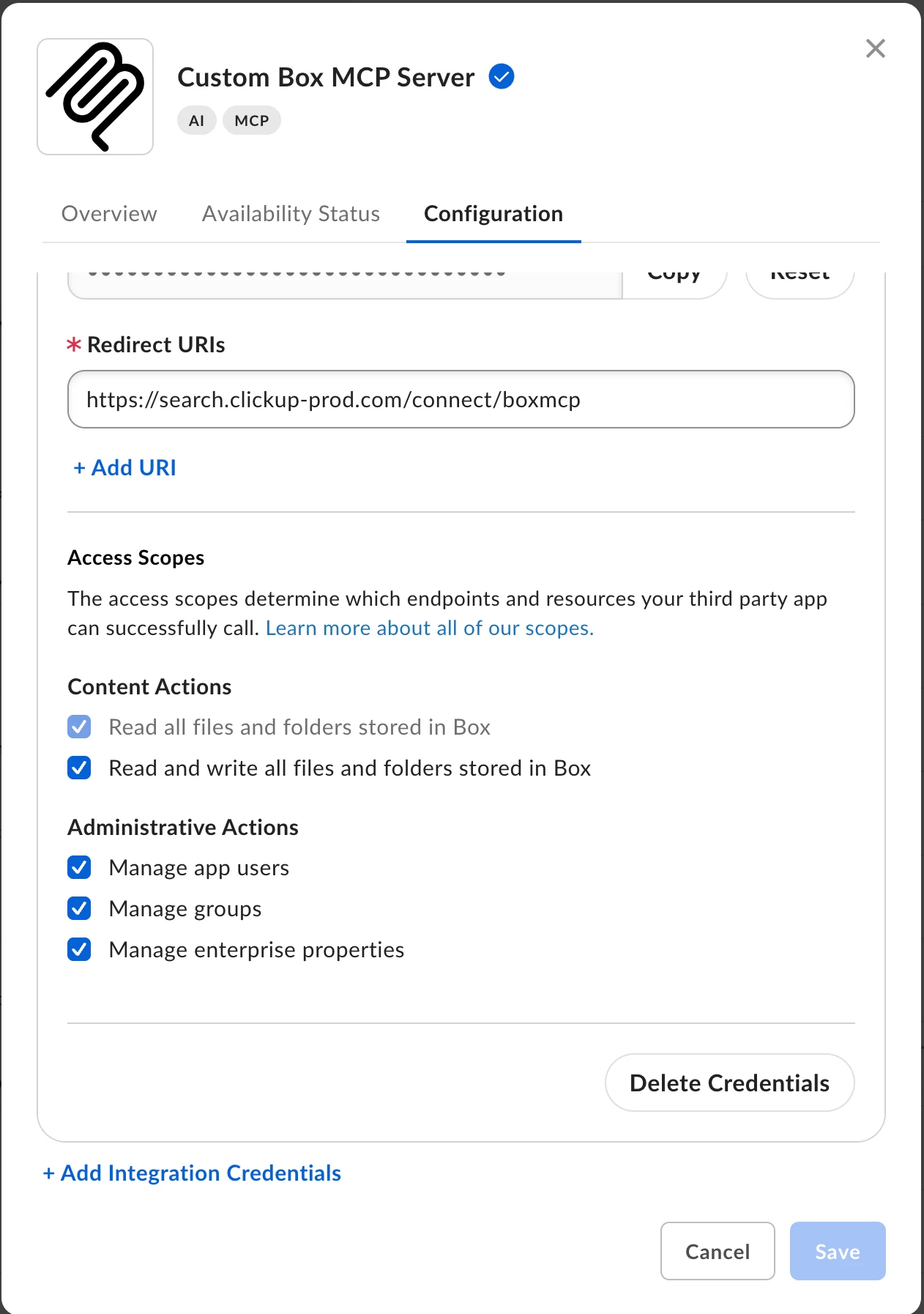
This is a known behavior in the Custom Box MCP Server Integration Credentials configuration panel. The Save button only becomes active (clickable) after all required fields are populated in a single session. Specifically:
-
The Redirect URI field must be filled in.
-
At least one scope must be selected.
-
Both must be set before the Save button activates.
If you're editing an existing credential (e.g., going back to add or change a Redirect URI after the initial save), the panel may not re-enable the Save button correctly unless you re-enter or re-confirm all fields in that same editing session. This is a UI limitation of the current integration credentials panel.
What to try:
-
Open the credential entry you want to edit.
-
Clear and re-enter the Redirect URI (paste it fresh rather than leaving the existing value).
-
Ensure at least one scope is actively checked/selected in the same session.
-
The Save button should then become active. If it still doesn't, try creating a new Integration Credential entry rather than editing the existing one, and populate all fields from scratch.
Issue 2: redirect_uri_mismatch on /api/oauth2/authorize
This error confirms that the Redirect URI stored in Box for that Client ID does not exactly match what is being passed in the authorization request. According to the Redirect-URI-Mismatch support article, the most common cause is that the redirect URI in the authentication request doesn't match the redirect URI configured on the app — and this is an exact-match requirement (protocol, path, trailing slashes, port numbers, and casing all matter).
Given that you're also seeing the Save button issue described above, it's very likely that your Redirect URI edits were never actually saved — meaning the credential was created with no Redirect URI stored, or with a stale/incorrect one from the initial save. Every authorization attempt will therefore return redirect_uri_mismatch because no valid URI is on record.
What to try:
-
Follow the steps in Issue 1 above to successfully save the correct Redirect URI.
-
After saving, verify the URI is stored by re-opening the credential entry and confirming the value appears.
-
Ensure the URI you pass in the redirect_uri parameter of your /api/oauth2/authorize call is character-for-character identical to what is saved — including https:// vs http://, any trailing slash, and exact path.
-
If you're unsure what URI ClickUp expects, check ClickUp's MCP connector documentation for the exact callback/redirect URL they require.
Issue 3: "Manage AI" Scope Not Listed + Missing Box AI / Platform → Platform Apps Sections
This is a plan-tier limitation. According to the documentation:
-
"Box AI, DocGen, and Sign are features included in specific Box plans and are subject to plan availability and limits. AI tools require a Box AI-enabled plan."
-
"Users only have access to MCP tools that match their current Box plan (e.g., a user needs a plan with Box AI to use AI tools via MCP)."
-
The Platform → Platform Apps section in Admin Console is also tied to Box Platform/Enterprise plan features and is not available on Business or Business trial plans.
You are on a Business trial, which does not include Box AI or Box Platform features. As a result:
-
The "Manage AI" scope does not appear in the Integration Credentials scope selector because your plan does not include Box AI.
-
The Box AI section in Admin Console is not visible for the same reason.
-
The Platform → Platform Apps section is absent because Platform app management is an Enterprise/Platform-tier feature.
What this means for your ClickUp integration: You can still use the Box MCP server with ClickUp for non-AI tools (file search, retrieval, collaboration, etc.) on a Business plan. However, AI-powered MCP tools (such as Ask Box AI, Extract, multi-file Q&A) will not be available until you upgrade to a plan that includes Box AI.
If your use case requires the "Manage AI" scope and AI tools, you would need to upgrade to a Box plan that includes Box AI (typically Business Plus or Enterprise). You can contact your Box account team or sales representative to discuss plan options.
Summary of Next Steps
| Issue | Action |
|---|
| Save button disabled | Re-enter all fields (Redirect URI + scope) in one session; or create a new credential entry from scratch |
| redirect_uri_mismatch
| Confirm the Redirect URI is actually saved (see above), then ensure exact match with what ClickUp sends |
| Missing "Manage AI" scope & Admin Console sections | This is expected on a Business trial — Box AI features require an AI-enabled plan (Business Plus or Enterprise) |
If after successfully saving the Redirect URI you still see redirect_uri_mismatch, please capture the exact URI being passed in the authorization request (visible in the browser URL bar or ClickUp's OAuth logs) and compare it character-by-character against what is stored in the Integration Credentials panel. Feel free to share both values here and we can help pinpoint the discrepancy.